
Client guide · Order & Pay
Box arrived?
Let’s begin.
From your first sticker to the daily routine. Set up your tables, sign in your team and keep the essential steps close at hand.
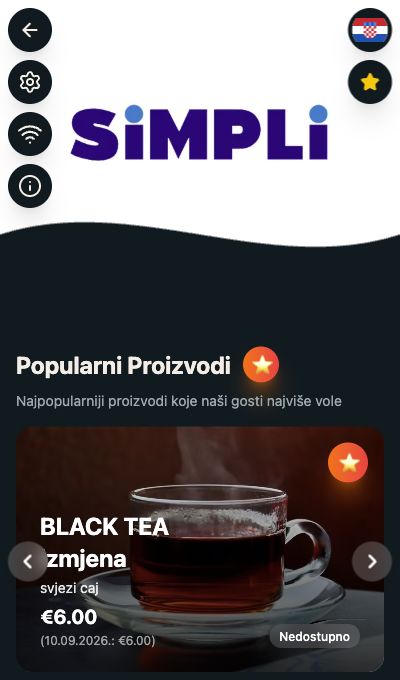
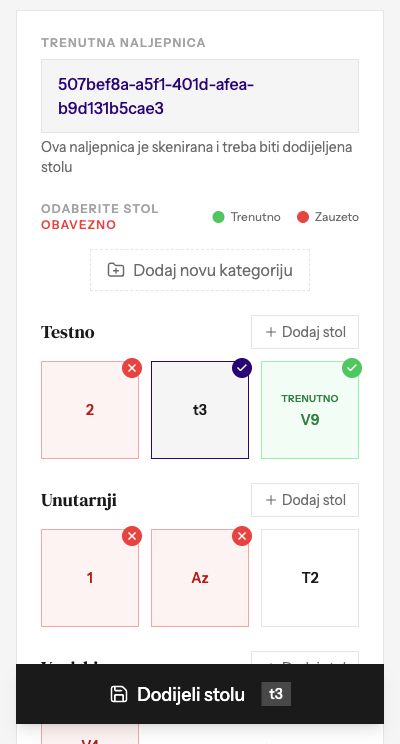
Real screenshots from the test environment · names and amounts are examples. Original Croatian and English labels from the app are preserved.
Before you begin
Your venue is linked. Next, your tables.
The stickers in your box already belong to your venue. Each still needs the correct table so future orders arrive with the right table label.
Have your phone and staff credentials ready.
You need an internet connection, a camera to scan the code, and your staff username and password.
Work with one sticker at a time.
Choose a table, take its sticker and scan that sticker. The QR on the box opens this guide; the QR on a sticker opens your venue.
Seeing Table Not Assigned? That is expected.
It means the sticker has no table yet. Settings are still available: continue through the gear at the top left. If the entry page opens first, choose Naruči (Order) to reach the menu.
Scan the next table’s own sticker before assigning it. Reusing the same open tab would keep you on the previous sticker.
Staff dashboard · inside the menu
Settings. Sign in. You’re ready.
Open the staff dashboard through Settings, including from the initial Table Not Assigned screen. Use it to assign stickers, manage product availability and refund payments.
Tap the gear at the top left.
The icon is available on Table Not Assigned and later in the menu. In Postavke (Settings), select Prijava osoblja (Staff login).
Enter your staff credentials.
In Staff Login, enter your Username and Password, then choose Login. A successful sign-in opens Kontrolna ploča osoblja (the staff dashboard).
Already signed in?
In Settings, choose Idi na kontrolnu ploču (Go to dashboard). You do not need to sign in again.
One sticker · one selected table
Scan. Select. Connect.
In the staff dashboard, find Dodijelite naljepnicu stolu (Assign sticker to table) and choose Odaberite stol (Choose table). You are editing the sticker you just scanned.
Choose the correct table in its category.
Check the label against your venue’s table plan. Trenutno (Current) marks this sticker’s table; Zauzeto (Occupied) means another sticker is already linked to that table.
Add a table if it is missing.
Choose Dodaj stol (Add table) inside a category, select the cash register in Registar and enter Naziv stola (Table name). Confirm with Dodaj stol. Add a category with Dodaj novu kategoriju if needed.
Check your choice and select Dodijeli stolu.
The button shows your selected table. An occupied table opens Prerasporediti stol (Reassign table): continuing means two stickers will point to the same table. If that is not intended, choose Odustani (Cancel) and select the correct table.
Scan again and check the table.
After a successful assignment, reopen the same sticker. Check the Stol (Table) label in Settings. Once it matches the physical table, place the sticker and repeat for the next table.
The first screen shows a new sticker without a table. Other screens show selection and warning examples from the test venue. Choose your venue’s actual table labels; you do not need to copy these examples.
For every shift
Before the first order.
A quick check at the start of each shift.
- The scanned sticker shows the correct table.
- Check Status Naručivanja to see whether ordering is enabled.
- The cash register is active; product availability matches your stock.
- Staff can open order history and find a payment.
Daily tasks · payment refunds
Find the order. Check the refund.
Find payments in Povijest narudžbi (Order history) in the staff dashboard. Refunds require a paid, accepted order and the relevant account permission.
Choose a period and open the order.
In Order history, choose Danas (Today), Tjedan (Week), Mjesec (Month) or Sve (All). Match the number, date, amount and table to the payment, then tap the order number. Swipe the table horizontally on mobile.
Review the Opasna zona (Danger zone) section.
Check the status, total and items. If a refund is unavailable, the app explains why. Do not initiate the same refund again for an already refunded order.
Choose the products to refund.
All items start selected for a full refund. For a partial refund, keep only the intended products selected. Check Iznos povrata (Refund amount) and Gost dobiva natrag (Guest receives), and optionally enter a reason.
Initiate the refund after the final check.
The bottom button states whether you are refunding the full order or selected items and shows the amount. Selecting it initiates the refund. Wait for the app’s result message and check the order status.
Screenshot amounts are examples. Always check the actual order and the amount the guest will receive before initiating a refund.
Daily tasks · drinks, food and bundles
Out of a drink? Update the menu.
Choose Upravljaj Menijem (Manage menu) in the staff dashboard. This controls availability; names, images and menu structure are edited in the separate management dashboard.
Search for the product.
Enter a product or category name. If you have multiple cash registers, check that you are working with the correct one.
Change the product’s switch.
Green means available; grey means unavailable. The same product may appear in several categories. Switch it back on when it is in stock again.
Choose Spremi Promjene (Save changes).
After an edit, the save button appears with a change count. Saving confirms the new availability. Reopen the guest menu and check the result.
For managers and owners · separate login
The bigger picture of your venue.
Open the management dashboard at dashboard.simpli.bar. It has a separate sign-in. Use the access provided for your venue, then choose the correct location.
Open the dashboard and sign in.
Enter your Username or email and Password, then choose Sign in. The menu login opens the staff dashboard; use the separate address for management.
Menu: venue content and settings.
Uređivanje menija (Menu editor) manages categories and products. Other sections include Prijevodi (Translations), Podaci o kafiću (Venue details), Ulazna stranica (Entry page), Novosti (News) and POS promjene (POS changes). Venue details includes the logo, languages, theme and other settings.
Orders and Analytics: operations and results.
Narudžbe (Orders) shows the operational order flow. Analytics shows revenue, orders, scans and trends, with venue and date filters.
Other sections depend on your permissions.
Navigation also includes Reviews, Special Offers, Status, Cjenik (Price list), Lokacije (Locations), Users and Activity. Users manages the team and permissions. The sections you can access depend on your account.
Learning Center · Menu Editor
Make the menu your own.
For categories, images, translations and other edits, continue with our short video guides.
Back to the Learning CenterNeed help? info@simpli.bar